
Cricket Visual Voicemail
Cricket Wireless LLCCommunication
3.910.93K Reviews
- Version
- 3.19.0.101277
- Installs
- 10.00M
- Age Rating
- Everyone
Screenshots

Our Review of Cricket Visual Voicemail
 Analysis by Appyee
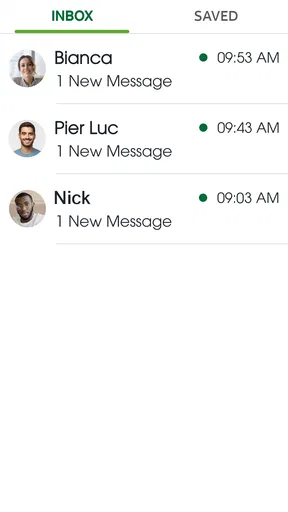
When I first opened Cricket Visual Voicemail, I understood its purpose almost immediately: it gives Cricket customers a more organized way to handle voicemail than calling a mailbox and listening from the beginning every time. Instead of treating every message as one long queue, the app presents messages so I can choose which one to hear, then decide whether calling or texting is the better reply.
That sounds simple, and it is, but simplicity is exactly the point here. This is a communication app from Cricket Wireless LLC rather than a general-purpose voicemail replacement for every carrier. If your mobile service is with Cricket and you regularly miss calls, the app can make those missed conversations easier to sort out. If you rarely receive voicemail or want a feature-heavy communication hub, its focused design may feel limited.
What to expect before you begin
The app is free, aimed at Everyone, and belongs to the communication category. Its public listing shows more than ten million installs, with an average score of 3.9 from roughly thirty-three thousand ratings and about eleven thousand written reviews. I read that combination as a useful sign of reach, but not as a guarantee that every phone or account will behave identically. Voicemail depends heavily on the carrier service behind the app, so the best experience starts with an active Cricket line.
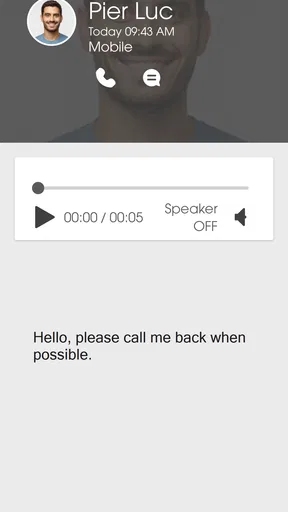
The main idea is selective listening. I can open the voicemail list, choose a message instead of following a fixed order, and then respond through a call or a text. That workflow is more practical than it may sound. A short message from a family member can be handled first, while a longer message from a business can wait until I have time to deal with it properly.
One important expectation to set is that this is not a full replacement for the phone’s entire calling experience. It is a dedicated visual voicemail tool. I would not install it expecting a new contacts manager, a complete text-messaging platform, or a broad social communication service. Its value comes from making one narrow task less awkward.
The current version is 3.19.0.101277, and the listed minimum operating-system requirement is 10. That requirement matters during installation. Before troubleshooting anything else, I would check that the phone meets it and that the Cricket line is the one associated with the device. A surprisingly large amount of voicemail frustration comes from setting up an app on the wrong line or an unsupported phone rather than from the app itself.
How the first setup should feel
After installing it, I would begin with the basics rather than immediately changing settings elsewhere on the phone. Open the app, follow the on-screen activation or account prompts, and give it time to connect the voicemail service. The exact screens can vary with the device and account, so I would avoid tapping through quickly if the app asks me to confirm the line or complete an activation step.
The first useful check is not a complicated one: I would call the phone from another number and leave a brief message. This creates a controlled test and answers the question that matters most—whether a new voicemail appears in the app. Using a short test message is better than waiting for an important caller, because it lets me identify setup problems without risking a missed deadline or family update.
If the test message does not appear right away, I would first verify the phone’s connection and reopen the app. I would also make sure the call actually reached voicemail rather than being answered or disconnected. Since the app relies on Cricket’s voicemail service, a problem with the line can affect the result even when the application itself opens normally.
For a first-time user, the reassuring part is that there is no need to redesign the whole phone. I would keep the phone’s regular calling and texting tools available and use this app specifically for voicemail. That division makes the transition easier: the app organizes incoming voice messages, while the familiar phone and messaging tools remain available for other conversations.
The first meaningful success
Once the test message appears, I would tap that message and listen to it from its own entry rather than dialing into a general mailbox. This is the moment when the app proves its usefulness. I can choose the message I want, hear it on my terms, and then decide what kind of response fits.
A useful habit is to process messages by urgency instead of arrival order. For example, imagine I am commuting and receive three voicemails: a delivery driver needs a response, a friend leaves a casual update, and a company leaves a long explanation. I can listen to the delivery message first, reply by text if that is fastest, and leave the other two for later. That is a small workflow improvement, but it prevents the usual voicemail problem of spending time on low-priority messages before reaching the one that matters.
The call-or-text choice is another practical detail. Some messages need a conversation, while others only require a quick confirmation. If a caller asks whether I can attend an appointment, a text may be enough. If the message involves several details or a sensitive issue, calling back is more sensible. I like that the app puts both response paths close to the message instead of making me remember the number and switch between unrelated screens.
The best first test is a real mini-workflow: receive, select, listen, then respond. Simply opening the app does not tell me whether it will fit my routine. Completing that sequence does. It also helps me notice whether I prefer replying by text or by voice before an important voicemail arrives.
Small habits that make it more useful
I would treat the voicemail list as a decision queue, not as an archive to ignore. After listening, I would immediately choose the next action: call, text, or leave it for later. This reduces the chance of hearing the same message repeatedly because I never decided what to do with it.
Another useful habit is to listen to a message completely before replying when the caller has included several points. It is tempting to respond to the first detail and miss the rest. The ability to choose messages in any order makes it easy to prioritize, but it also makes selective listening a responsibility: a message that sounds unimportant at the start may contain the key information at the end.
For people who share a phone with work and personal calls, the app can also support a simple separation routine. I would review urgent work-related messages during a planned check, then handle personal messages later. This is not a replacement for a full business phone system, but the visual list makes it easier to decide when voicemail deserves attention instead of reacting to every missed call immediately.
There is also a trade-off in replying by text. Texting is quick and leaves a written response, but it may not be appropriate for a caller who expects a detailed conversation. I would use it for confirmations, short updates, or questions that can be answered clearly in writing. For anything that could be misunderstood, the call option is safer.
Common confusion during everyday use
The first common misunderstanding is assuming that every missed call will become a voicemail entry. A missed call only creates something to review when the caller leaves a message. If someone hangs up, the app cannot provide a recording that was never made. I would check the phone’s regular call history as well when I am trying to understand why a person contacted me.
Another point of confusion is the difference between opening a message and responding to it. Listening does not automatically resolve the conversation. I still need to decide whether to call or text. That extra decision is helpful, but users who expect the app to handle follow-up automatically may find the workflow more manual than they imagined.
It is also easy to blame the app when voicemail activation is the real issue. If messages are not arriving, I would test the Cricket line itself by calling from another phone, leaving a message, and checking whether the app updates afterward. I would also confirm that I am using the intended Cricket number and that the operating system meets the listed requirement. These checks are more productive than repeatedly reinstalling without identifying the source of the problem.
Some people may wonder whether the app is useful if they already know how to dial voicemail. The answer depends on how often they need to review messages. Dial-in voicemail can be perfectly adequate for someone who receives one message every few weeks. The visual approach becomes more valuable when several messages accumulate and listening in arrival order wastes time.
Another realistic limitation is that the app’s usefulness is tied to Cricket service. I would not recommend building a voicemail routine around it and then switching to another carrier without checking compatibility. A general phone voicemail system may be the better long-term choice for someone who changes carriers often or uses several lines from different providers.
How it compares with the usual alternatives
The most direct alternative is the traditional voicemail mailbox. That method works almost everywhere and does not require learning a separate visual list, but it is slower when I need to reach one specific message. Cricket Visual Voicemail is more convenient for scanning and choosing, while dial-in voicemail remains a dependable fallback for people who prefer a familiar call-based process.
The phone’s built-in calling tools are another alternative, but they usually focus on call history rather than message handling. A call log can tell me who called; this app is designed to help me deal with what the caller actually said. I would use the call log to investigate an unanswered number and this app to process the recorded message.
Text messaging apps are useful when the other person has already sent a text, but they do not solve the problem of organizing voice messages. The app’s call-or-text response path is valuable precisely because it starts with a voicemail and lets me choose the appropriate channel afterward. Still, a person who communicates almost entirely through text may gain little from installing a separate voicemail application.
More advanced third-party voicemail services may offer broader organization or transcription-oriented workflows, but I would not choose them automatically. A carrier-specific app has the advantage of staying close to the Cricket line, and that straightforward relationship can be preferable to adding another service. The trade-off is that users seeking extensive customization may find this focused tool too modest.
Who should use it and who should skip it
I think it is a good fit for Cricket customers who receive enough voicemail to need order but not enough to justify a complicated communication system. It is especially useful for people who often listen to messages in short bursts: during a break, before an appointment, or while deciding which caller needs an immediate response.
It can also help less technical users because the central task is easy to understand: open the list, select a message, listen, and choose a reply. The Everyone content rating supports that broad accessibility, although a simple interface does not remove the need for a working Cricket voicemail setup.
I would skip it if I almost never receive voicemail, if I prefer dialing a mailbox, or if my mobile service is not Cricket. I would also look elsewhere if I need voicemail features beyond the app’s focused communication workflow. In those cases, the phone’s existing tools or a broader service may be a better match than installing an app dedicated to one carrier’s voicemail experience.
My next-step recommendation
My advice is to install it only when you have a few minutes to perform the test call. Leave a short message from another number, open the app, select that message, listen, and try both possible response paths in your head: when would you call, and when would you text? That small exercise tells you more than simply reading the description.
After the first successful test, make the app part of a simple routine. Check the list when you have enough attention to respond, handle urgent messages first, and avoid leaving listened-to messages without a decision. If an expected message does not appear, test the line and account connection before assuming the application has failed.
In my experience, Cricket Visual Voicemail is most convincing when voicemail has become a minor source of daily friction. It does not try to be a complete communications suite, and that narrow purpose is both its strength and its limit. For the right Cricket user, choosing messages individually and replying by call or text is a meaningful improvement over dialing through a queue. For everyone else, the standard phone voicemail tools may be enough.
With a 3.9 average and a large installed base, it is clearly a familiar option among Cricket users, but I would judge it by fit rather than popularity. The current release, 3.19.0.101277, is free to try, and the practical question is simple: do you regularly need to sort through voicemail? If the answer is yes, the app is worth testing with a real message and a real response decision.
Verdict
Strengths of Cricket Visual Voicemail
- Quickly displays voicemail messages in a visual inbox.
- Lets you choose which messages to listen to first.
- Reduces the need to dial into traditional voicemail menus.
- Makes voicemail management more convenient on supported devices.
- Can help keep personal and work messages organized.
Limitations of Cricket Visual Voicemail
- Availability depends on your carrier, plan, and device compatibility.
- Some features may require mobile data or an active internet connection.
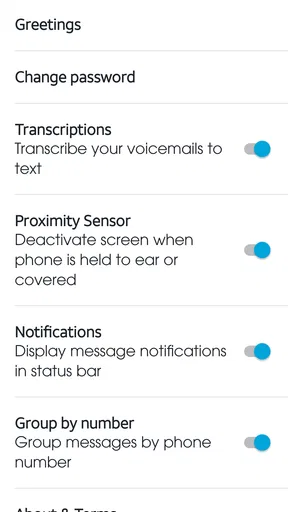
- Transcription quality can vary with accents and background noise.
- The interface may differ across carriers and Android versions.
- Setup can fail if voicemail settings are not provisioned correctly.
Similar Picks in This Category
View All
Google Messages
Google LLC4.6

Gmail
Google LLC4.1

Google Meet
Google LLC4.4

Google Chrome
Google LLC4.1

WhatsApp Messenger
WhatsApp LLC4.6

Carrier Services
Google LLC4.2
Frequently Asked Questions
What is Cricket Visual Voicemail and how does it work?
Cricket Visual Voicemail lets you manage voicemail messages directly from your Android phone without calling a voicemail number and listening to messages in sequence. After setup, you can view a list of messages, see caller details when available, play recordings in any order, pause or replay them, and delete messages individually. Availability and the exact interface may vary by device and Cricket Wireless service plan.
Is Cricket Visual Voicemail free to use with a Cricket Wireless plan?
The Visual Voicemail feature is generally included with eligible Cricket Wireless service, but voicemail access can depend on your plan, phone model, account settings, and current carrier policies. Standard mobile data charges may apply when messages are loaded or synchronized over cellular data, although Wi-Fi can often be used. Check your Cricket account or contact support before relying on the feature while traveling.
What permissions and phone settings does Cricket Visual Voicemail require?
During installation or first use, Cricket Visual Voicemail may request permissions related to phone, contacts, notifications, storage, or network access. These permissions help the app identify callers, download and play voicemail recordings, and alert you about new messages. You can review permissions in your phone’s Settings app, but restricting essential access may prevent notifications, message synchronization, or playback from working correctly.
Why are my voicemail messages not appearing or updating in the app?
If new messages do not appear, first confirm that your phone has a working mobile connection or Wi-Fi, then restart the app and check for updates. Visual Voicemail also requires an eligible Cricket account, a compatible device, and properly configured voicemail service. Airplane mode, SIM changes, account problems, outdated software, or temporary carrier issues can interrupt synchronization. Calling Cricket support may be necessary if the problem continues.
Can I use Cricket Visual Voicemail when I change phones or travel internationally?
Your voicemail messages are associated primarily with your Cricket Wireless account and voicemail service, but the experience may change when moving to another compatible phone. You may need to activate or configure Visual Voicemail again after inserting your SIM or signing in. International use can be limited by roaming availability, data costs, and carrier restrictions, so download or review important messages before traveling and verify Cricket’s roaming terms.
